

AI Chat Two-Way Translation
Understand messages in different languages during conversations and compose replies in your familiar language for smoother communication.
Traneasy Easy Translator
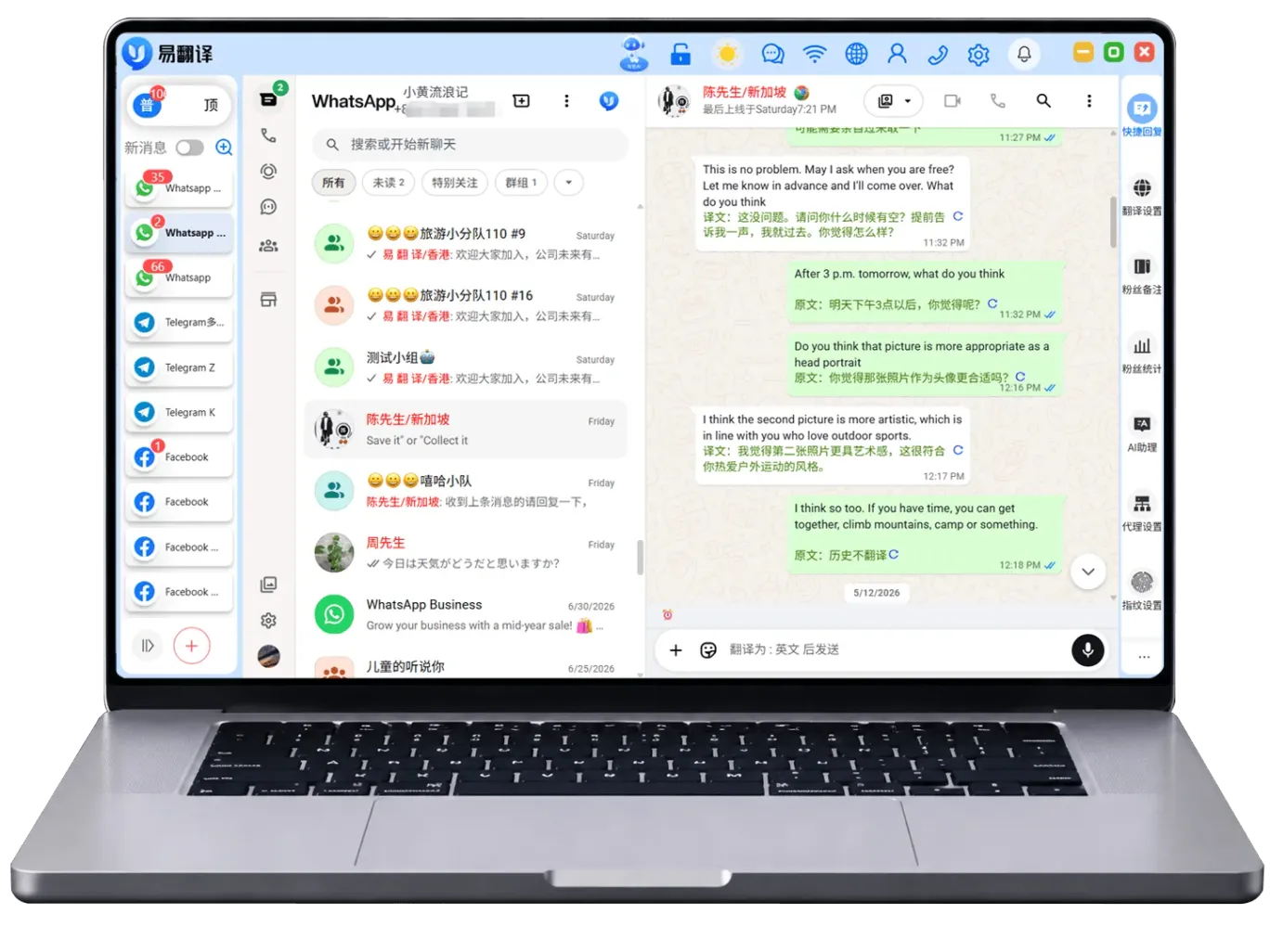
A communication workspace for cross-border teams, combining instant translation, customer organization, and multi-account collaboration to make communication and follow-up easier
Supports WhatsApp, Telegram, and other major platforms














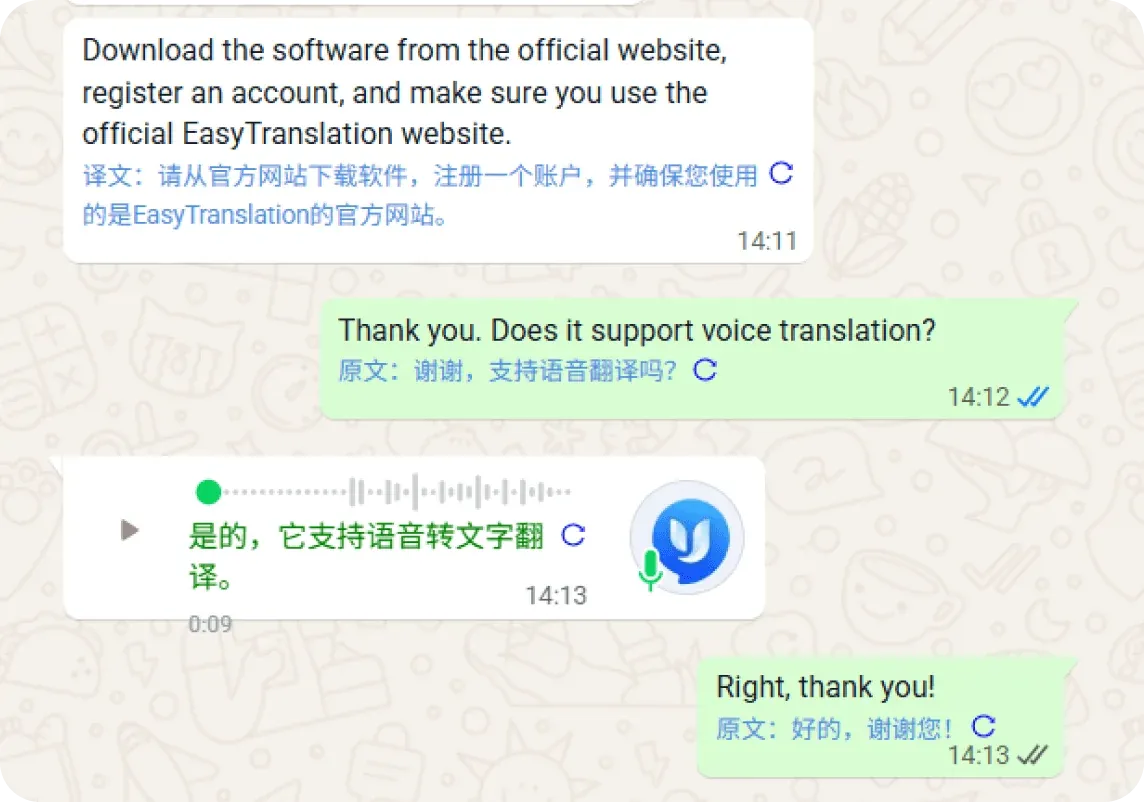
Understand messages in different languages during conversations and compose replies in your familiar language for smoother communication.

Arrange apps and accounts in a unified interface, combining environment settings and permission assignments to keep team collaboration more organized.

Use customer tags, communication records, and quick replies to organize daily follow-ups, keeping important leads clear and trackable.
Understand incoming foreign-language messages, then organize replies in a familiar language, putting translation and communication into a continuous workflow.
Combine tags and message content to organize contacts, clearly planning follow-ups and frequently used information.
Organize common expressions and explanatory content, and call them up quickly when needed to make everyday replies easier.
Use language assistance according to the content types supported by the app to clearly understand text and communication materials.
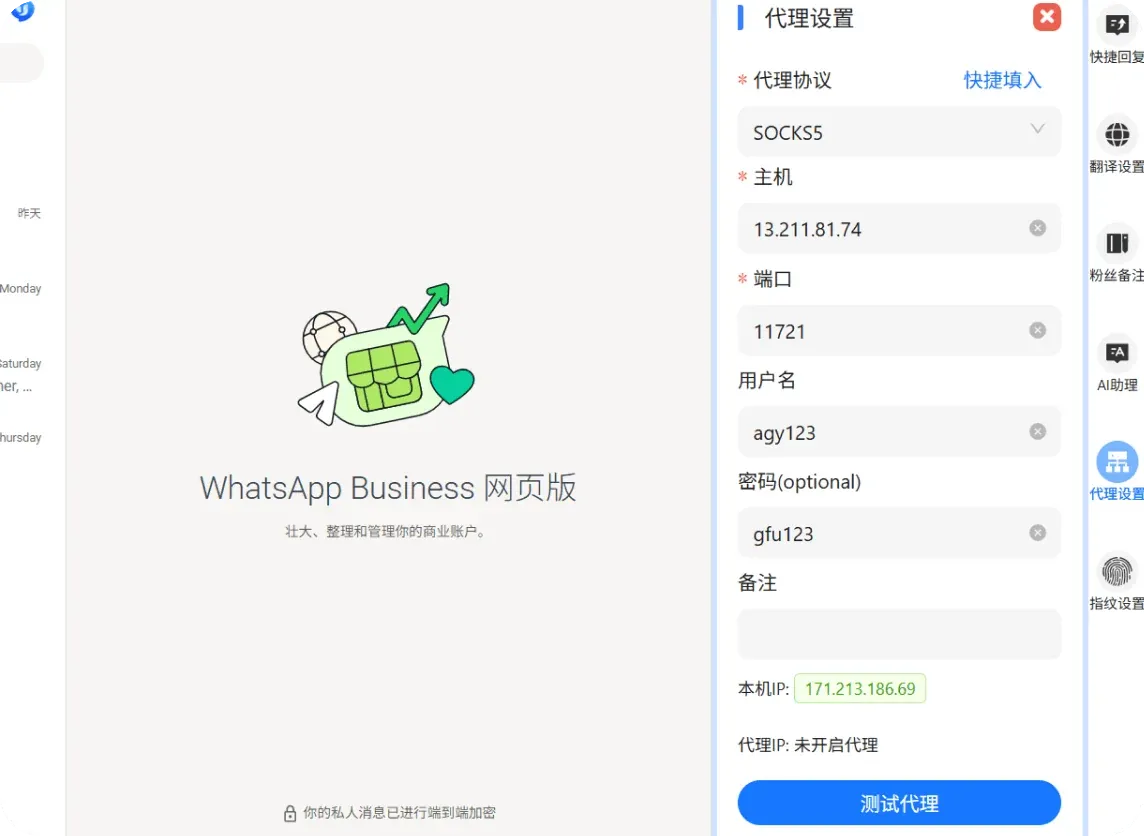
Organize accounts and environments for different work scenarios, set access scopes as needed, and make team division of work easier.
Configure connections according to the network setup instructions in the app, keeping the work environment and account arrangement clear and consistent.
View multiple work entries in a familiar interface, reducing repeated searching and device switching.
Arrange tags based on region, needs, and communication stage to easily distinguish different types of contacts.
Find customers through notes and tags, quickly return to relevant conversations, and continue communication already in progress.
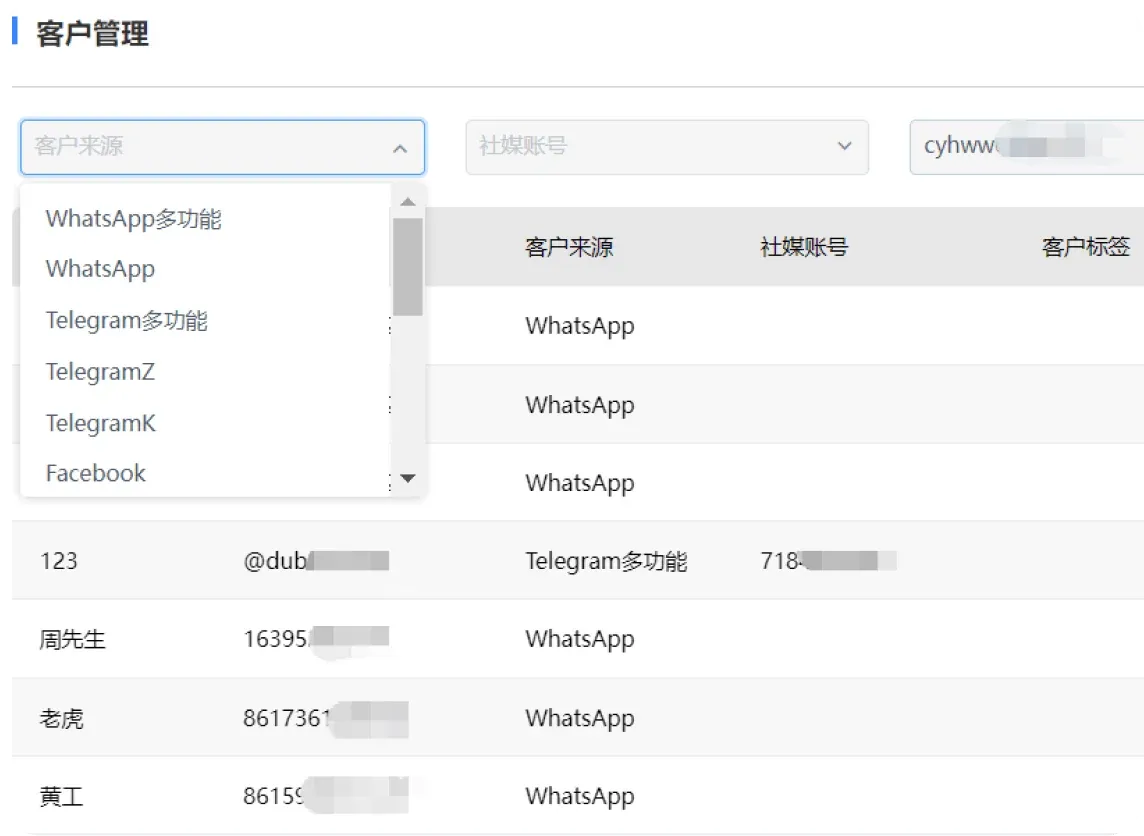
Organize customer sources and communication records by channel to prepare clear background information for the next step.
View existing customer information and work records, and adjust daily arrangements and collaboration steps according to current needs.
From instant translation to customer organization, connect familiar workflows for your team.
Understand messages in different languages and organize replies clearly using common expressions.
Organize contacts and communication records by category so follow-up communication has a solid basis.
Connect accounts, environments, and permission settings to facilitate daily task division and handover.
Keep conversations and quick replies together in one workspace to reduce repetitive steps.
Select the download option based on your computer's operating system. Windows and macOS use different installation files. After downloading, continue by following the system prompts.
Open the client and complete the initial setup by following the in-app prompts, then get familiar with the conversation list, app entries, and language assistance features.
Start with contact notes, tags, and quick replies, then arrange categories according to your own workflow so you can easily review and follow up later.
Organized around common desktop and mobile usage scenarios, this section provides practical information on installation, switching, and syncing to help you maintain a consistent translation experience across devices.
After signing in with the same account, your preferred languages, history, and personal glossary sync automatically, reducing the need to set things up again.
After downloading language packs in advance, you can continue completing basic translation tasks even with a weak connection or no network.
Supports keyboard shortcuts and system share entries, making it ideal for frequently switching between documents, browsers, and chat tools.
First confirm that your device's system version meets the requirements, then restart the app. If it still won't open, try clearing the cache or reinstalling the language pack, and avoid running multiple old versions at the same time.
Please check your account login status and network connection, and enable sync in settings. On some devices, power saving mode will restrict background refresh; turning it off usually restores normal operation.